
From installation
to your first governed call.
A practical walkthrough with real console screenshots. Your gateway, operator accounts, credentials, and operational data stay in your installation.
This is a source-based local setup for evaluation and development. The customer portal does not provision or configure your gateway. Production hosting, TLS, network controls, and backup procedures require a separate deployment plan.
Prepare your environment
Use Node.js 24, npm, Docker with Compose, and a terminal on the machine that will run ACL. Obtain the current source package from your project representative, then open its root folder. This guide covers the current local development installation; a packaged production installer is not available yet.
Install and start ACL
Run these commands from the source folder. Initialization creates .env with installation secrets and acl.local.json with demo MCP servers. Keep the terminal running while you use the console. Existing local configuration is preserved.
npm ci --ignore-scripts
npm run init:local
docker compose up -d --wait
npm run start:local
Expected result: the terminal prints the console URL and MCP endpoint. PostgreSQL runs in Docker on local port 55433.
Create your first administrator
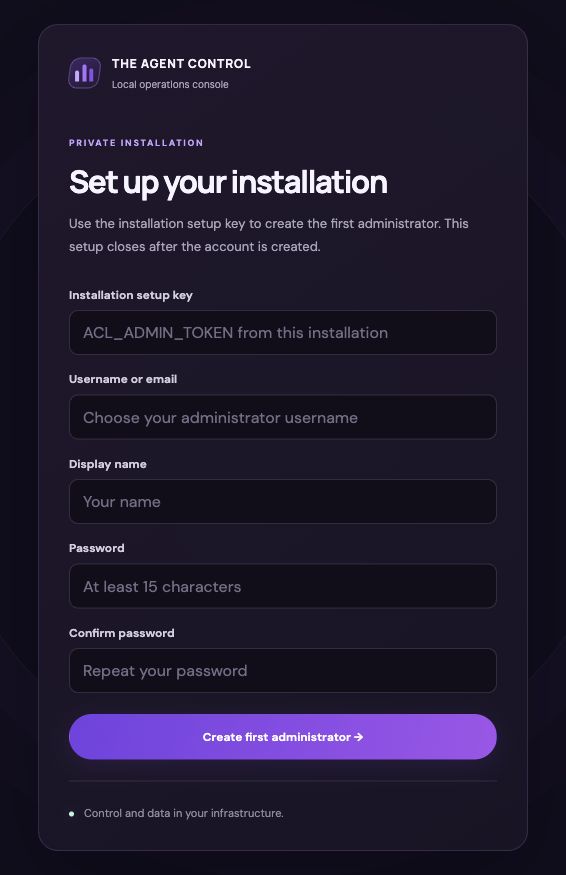
Open http://127.0.0.1:8500/ on the same machine. Find ACL_ADMIN_TOKEN in your local .env file and enter it as the Installation setup key. Choose your username, display name, and a password of 15–128 characters, then select Create first administrator. Initial setup closes after this account is created. Subsequent visits use your username and password.
Connect your MCP servers
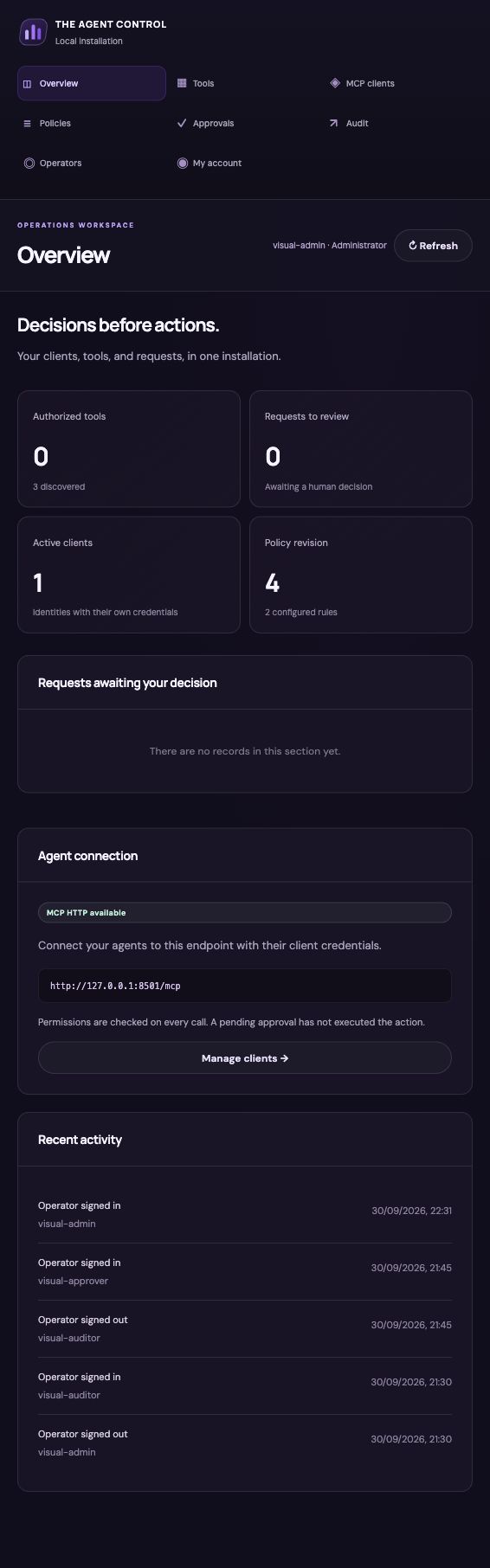
The initial configuration includes fictional calendar and billing servers for learning. Replace or extend upstreams in acl.local.json with the servers you operate. A stdio server needs a command and arguments; a Streamable HTTP server needs its URL and any required headers. Keep secrets local. Restart ACL after changing upstream configuration. Check Overview for discovery errors and the MCP endpoint.
{
  "id": "my-tools",
  "prefix": "work",
  "transport": "stdio",
  "command": "node",
  "args": ["/absolute/path/to/your-mcp-server.mjs"]
}
Register an agent identity
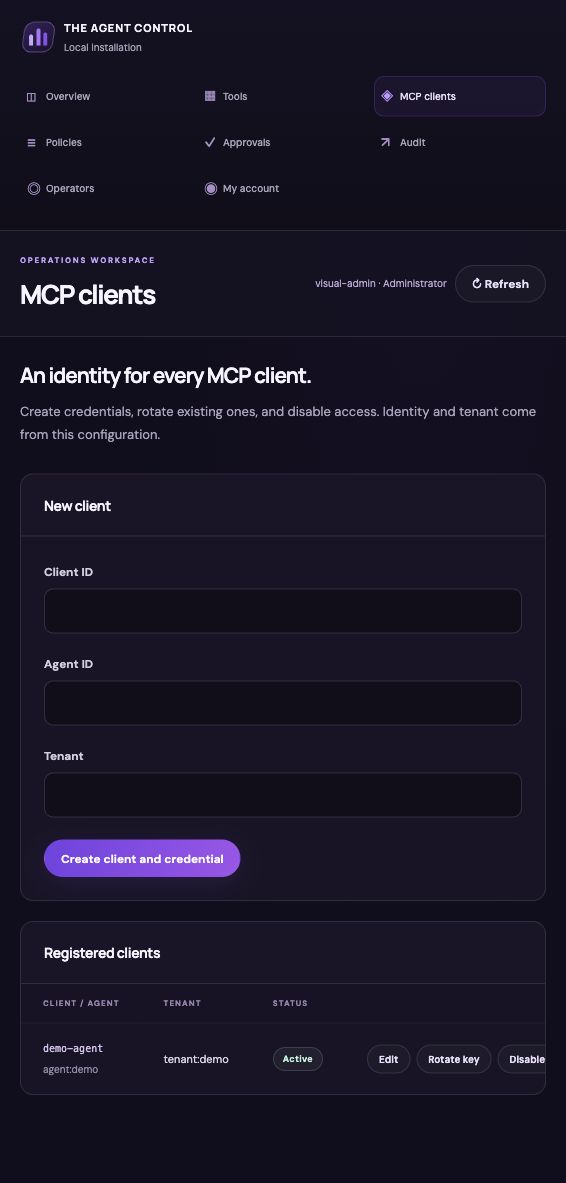
Open MCP clients. Enter a unique Client ID, Agent ID, and Tenant, then select Create client and credential. Save the credential in your agent’s secret configuration: it is shown once. Use a separate identity for each agent. The screenshot shows an existing fictional demo client; your fresh installation starts without clients.
Define what the agent may do
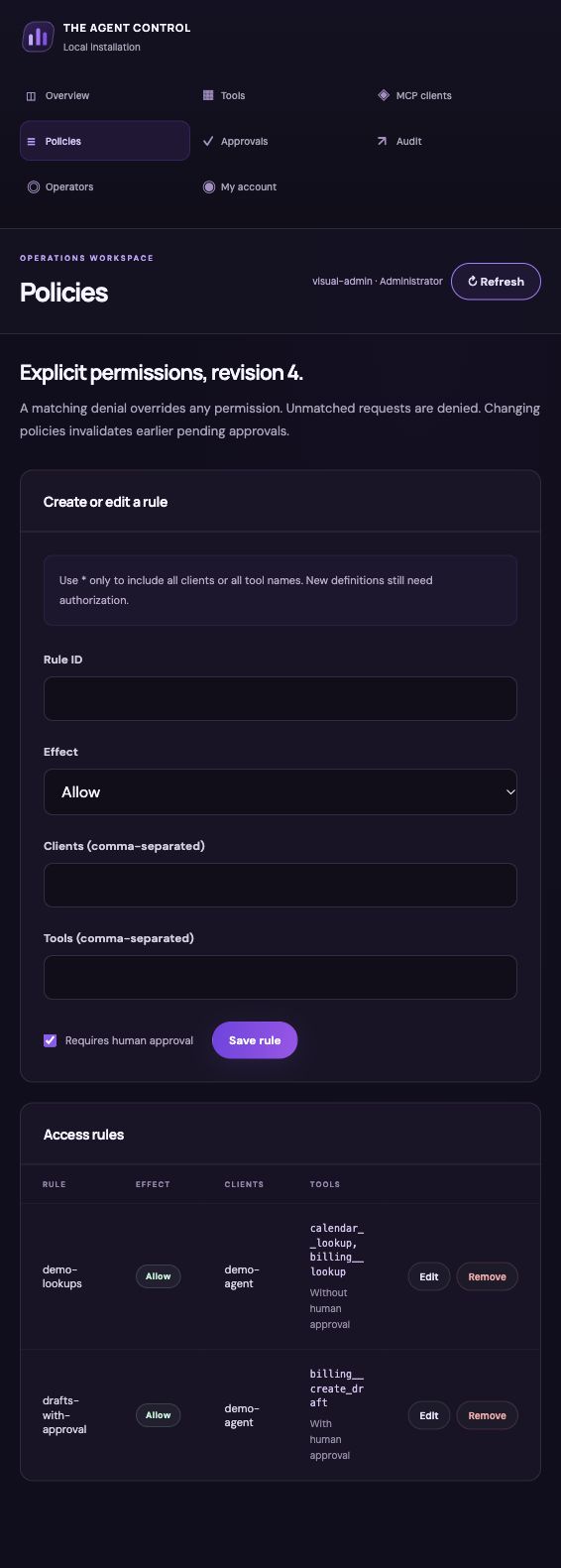
Open Policies. Enter a rule ID, choose Allow, enter the registered client ID, and use the exact tool name from Tools. For the billing demo, use billing__create_draft and keep Requires human approval checked. Select Save rule. Unmatched calls are denied; a matching Deny takes precedence. Policy changes invalidate earlier pending approvals.
Authorize the exact tool definition
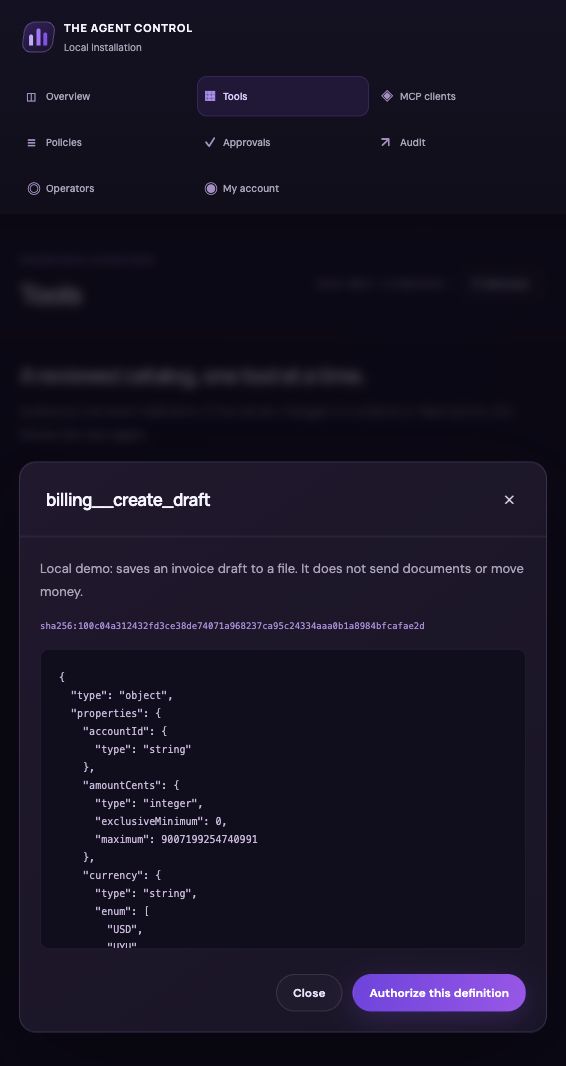
Open Tools and select Review definition for each intended tool. Read its description and input schema, then select Authorize this definition. A policy alone does not authorize a tool definition. New or changed definitions need another review before calls can proceed.
Connect your agent to the gateway
In an MCP client that supports Streamable HTTP, configure the endpoint below and send the client credential in the Authorization header. Use the address shown in your own Overview. Screenshots use a separate demo instance on port 8501; the default installation uses 8500. Route governed tool calls through ACL and restrict direct access to upstream servers.
Endpoint: http://127.0.0.1:8500/mcp
Authorization: Bearer <your-client-credential>Review a request and let the agent resume
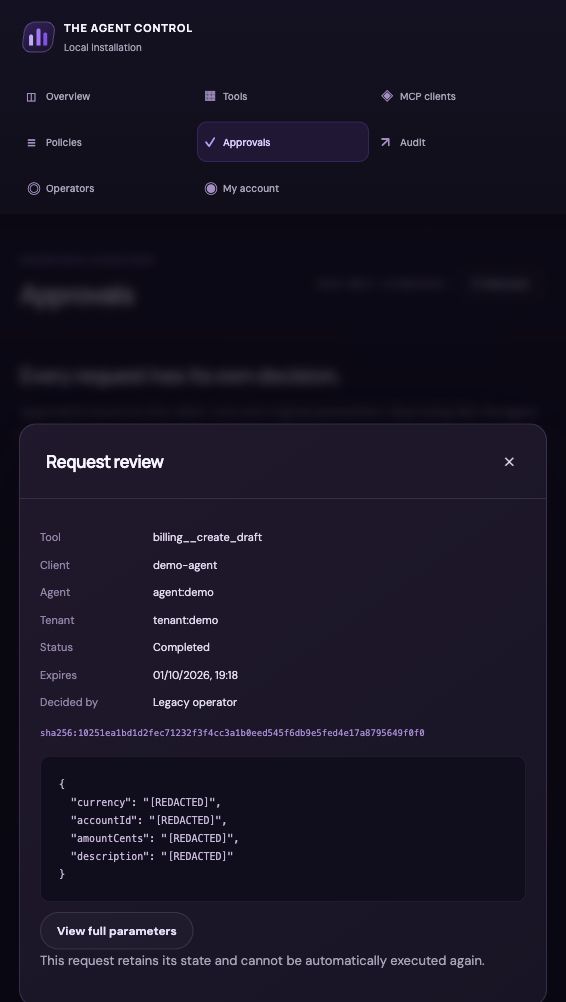
For a rule requiring human approval, the agent includes a stable _meta.acl.requestId on its tool call. ACL returns a pending approval ID without executing the action. In Approvals, open the request, view its full parameters, then approve or reject it. Approval allows the agent to call acl__approval_resume with only the approvalId. The original parameters are retained. Use acl__approval_status to check progress. An unknown outcome must be investigated before attempting a new action.
{
  "name": "acl__approval_resume",
  "arguments": { "approvalId": "<approval-id>" }
}
For the included billing demo, the original MCP tool call can look like this. Replace the fictional account and request IDs with values for your own evaluation.
{
  "name": "billing__create_draft",
  "arguments": {
    "accountId": "demo-account",
    "amountCents": 1000,
    "currency": "USD",
    "description": "Installation walkthrough"
  },
  "_meta": { "acl": { "requestId": "walkthrough-001" } }
}
The screenshot shows a completed demo request. Pending requests present the decision controls after you review the full parameters.
Add operators and review the audit
In Operators, an administrator can add colleagues as Administrator, Approver, or Auditor. New operators change their temporary password on first sign-in. Approvers can review requests; auditors have read-only, redacted access. Use Audit to follow decisions and outcomes. Preserve .env and the database in secure backups, including ACL_ENCRYPTION_KEY: encrypted records depend on that key.
Troubleshooting
The console does not open
Keep npm run start:local running and use its printed URL. Check that Node.js 24 is active, Docker is running, and docker compose ps shows a healthy database. If port 8500 is occupied, set ACL_PORT in .env and restart.
A tool call is denied
Check the client credential, an Allow rule for that client and tool, and the tool’s exact definition authorization. A Deny rule takes precedence. Changed definitions need a new review.
I cannot sign in
The setup key only creates the first administrator. After setup, use the account username and password. An installation owner with local database and encryption-key access can recover an existing operator using the command below; the password is entered interactively.
npm run recover:operator -- --username <existing-username>An approval has an unknown outcome
Inspect the upstream system and audit trail before creating a new request. ACL does not automatically resend an uncertain action.
What can I share with support?
Share the step, error message, and a redacted screenshot. Do not send .env, passwords, setup keys, client credentials, or full tool parameters.